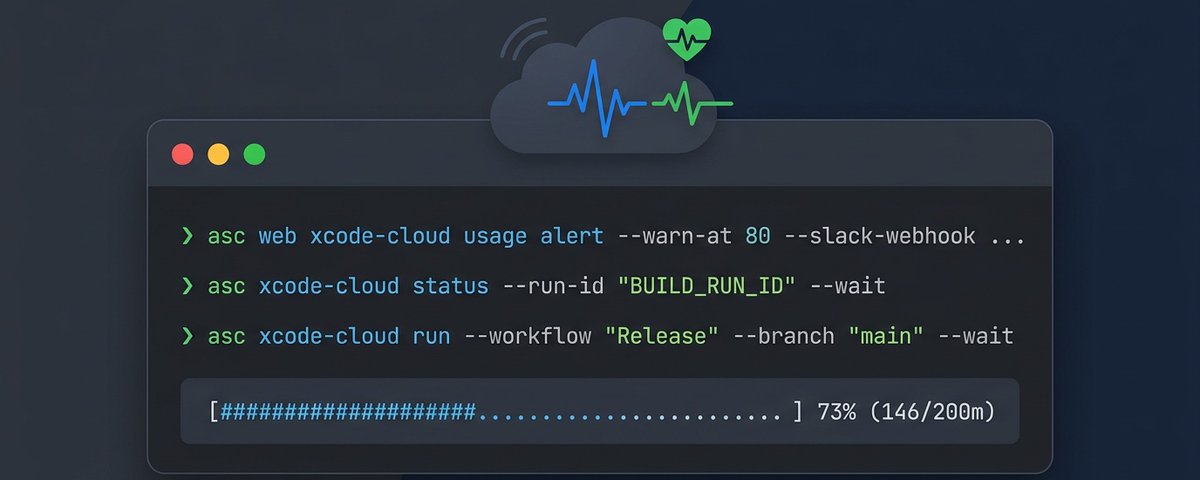
A friend of mine recently started using ASC CLI at a big Australian company. He started small, just to monitor the Xcode Cloud situation: which workflows are going through compute minutes, why builds are failing, and monitor the builds as each one takes at least half an hour.
We had a conversation about his setup and what he was using, and I realised I should write a proper guide on the Xcode Cloud side of the CLI. I have written about subscriptions and the review cycle, and this one is about what developers interact with every single day: their builds.
Enjoy the full walkthrough of everything asc cli can do with Xcode Cloud, from triggering builds to monitoring usage to figuring out which workflow is eating 60% of your quota.
https://github.com/rorkai/App-Store-Connect-CLI
Setting Up
If you do not have asc installed yet:
brew install asc
You need an App Store Connect API key. Generate one under Users and Access > Integrations > App Store Connect API in the App Store Connect dashboard. Apple gives you three things: a Key ID, an Issuer ID, and a .p8 private key file. Hand those to asc:
asc auth login \
  --name "MyApp" \
  --key-id "ABC123" \
  --issuer-id "DEF456" \
  --private-key /path/to/AuthKey.p8
This stores the credentials in Keychain so you do not have to pass them on every subsequent command. If you manage multiple apps or teams, you can save different named profiles and switch between them.
For the experimental usage commands (asc web xcode-cloud), you also need an Apple Account web session. These commands take --apple-id and handle the session caching.
The Two Command Families
ASC CLI has two separate command trees for Xcode Cloud:
asc xcode-cloud:
Uses the public App Store Connect API. This is stable, documented, and covers the core CI lifecycle: triggering builds, checking status, listing workflows, inspecting build actions, downloading artifacts, reviewing test results and issues.
asc web xcode-cloud:
Uses Apple's private web API (the same one the App Store Connect website calls). This is experimental and covers what the public API does not: compute usage, plan quota, monthly and daily breakdowns, per-workflow usage stats, environment variables, and workflow management operations that Apple never exposed publicly.
Starting with Products and Workflows
Everything in Xcode Cloud starts with a product (your app) and the workflows attached to it. A product is the Xcode Cloud representation of your app whereas a workflow is the flow that builds, tests, archives, uploads and notifies relevant groups.
List your Xcode Cloud products:
asc xcode-cloud products --app "com.example.myapp"
List the workflows for an app:
asc xcode-cloud workflows --app "com.example.myapp"
This gives you the workflow IDs, names, and whether they are enabled. In table mode (--output table), it is easy to scan. To get details on a specific workflow:
asc xcode-cloud workflows get --id "WORKFLOW_ID"
And to see which repository a workflow is connected to:
asc xcode-cloud workflows repository --id "WORKFLOW_ID"
This is usually where you will start. Before you trigger anything, you want to know which workflow IDs exist, what they are called, and which repo they are attached to.
Triggering a Build
The run command is where most of the daily usage lives. You have two modes.
Standard mode, specify the workflow and what to build:
asc xcode-cloud run \
  --app "com.example.myapp" \
  --workflow "CI" \
  --branch "main"
You can reference the workflow by name (which requires --app for lookup) or by ID directly:
asc xcode-cloud run \
  --workflow-id "WORKFLOW_ID" \
  --git-reference-id "REF_ID"
You can also trigger a build against a pull request:
asc xcode-cloud run \
  --workflow-id "WORKFLOW_ID" \
  --pull-request-id "PR_ID"
And if you want to rerun an existing build run, there is a dedicated mode for that, optionally with a clean build:
asc xcode-cloud run --source-run-id "BUILD_RUN_ID" --clean
Waiting for a Build
You do not need to trigger a build and then write your own shell loop to poll it. The --wait flag turns run into a blocking call that polls until the build finishes:
asc xcode-cloud run \
  --app "com.example.myapp" \
  --workflow "Deploy" \
  --branch "release/1.0" \
  --wait \
  --poll-interval 30s \
  --timeout 1h
This is when you want to use it for CI scripts. You trigger the build, wait for it, and check the exit code. This is helpful to run as a subagent that can message back the main agent with the response.
Checking Build Status
If you triggered a build without --wait, or you want to check on something that started from Xcode or a webhook:
asc xcode-cloud status --run-id "BUILD_RUN_ID"
Add --wait to block until it finishes:
asc xcode-cloud status --run-id "BUILD_RUN_ID" --wait
The output gives you execution progress, completion status, issue counts, commit info, and timing.
Digging Into Build Runs
To see the history of build runs for a workflow:
asc xcode-cloud build-runs --workflow-id "WORKFLOW_ID"
Sort by newest first:
asc xcode-cloud build-runs --workflow-id "WORKFLOW_ID" --sort "-number"
Paginate through everything:
asc xcode-cloud build-runs --workflow-id "WORKFLOW_ID" --paginate
Each build run is made up of actions: Resolve Dependencies, Build, Archive, Test, Upload. To see what actually happened inside a build:
asc xcode-cloud actions --run-id "BUILD_RUN_ID" --output table
This is where you figure out which step failed. Each action has its own status, timing, and action type.
You can also inspect a specific action:
asc xcode-cloud actions get --id "ACTION_ID"
Test Results
If a test action ran:
asc xcode-cloud test-results list --run-id "BUILD_RUN_ID"
Or for a specific action:
asc xcode-cloud test-results list --action-id "ACTION_ID"
When you use --run-id, the CLI aggregates test results across all TEST actions in the run. You do not have to find the right action ID first.
Build Issues
Same pattern for issues (compiler warnings, errors, analyzer findings):
asc xcode-cloud issues list --run-id "BUILD_RUN_ID"
Artifacts
List the artifacts from a build run:
asc xcode-cloud artifacts list --run-id "BUILD_RUN_ID"
When you use --run-id here, it resolves from the ARCHIVE actions automatically. Then download:
asc xcode-cloud artifacts download --id "ARTIFACT_ID" --path ./build.zip
Artifact types include ARCHIVE, ARCHIVE_EXPORT, LOG_BUNDLE, RESULT_BUNDLE, TEST_PRODUCTS, and STAPLED_NOTARIZED_ARCHIVE. The log bundle is what you want when a build fails and you need to read the full Xcode build log.
Source Control
Xcode Cloud is tightly coupled to your SCM setup. You can inspect all of it. List your connected SCM providers:
asc xcode-cloud scm providers list
List repositories:
asc xcode-cloud scm repositories list
List branches and tags for a repository:
asc xcode-cloud scm repositories git-references --repo-id "REPO_ID"
List pull requests:
asc xcode-cloud scm repositories pull-requests --repo-id "REPO_ID"
These are useful when you need to find the git reference ID to trigger a build against a specific branch or tag programmatically.
Build Environment Versions
Check what macOS and Xcode versions are available for Xcode Cloud:
asc xcode-cloud macos-versions --output table
asc xcode-cloud xcode-versions --output table
See which Xcode versions are available on a specific macOS:
asc xcode-cloud macos-versions xcode-versions --id "MACOS_VERSION_ID"
Or the reverse, which macOS versions support a specific Xcode:
asc xcode-cloud xcode-versions macos-versions --id "XCODE_VERSION_ID"
This helps when you are setting up a new workflow and need to pick a compatible macOS + Xcode pair, or when Apple drops support for an older version and you need to find a replacement.
The Monitoring Side
Now we get to the reason this article exists. The public App Store Connect API still does not give you the full Xcode Cloud usage picture that you actually want when you are trying to monitor the situation. So ASC CLI has an experimental command family that talks to Apple's private web API.
These commands are marked experimental, unofficial, and discouraged for production-critical automation. That warning is real. Apple can break them anytime.
But for monitoring your own team's Xcode Cloud usage, they are extremely useful.
Discovering Product IDs First
The private monitoring commands use Xcode Cloud product IDs, not the same --app resolution flow as the public commands. So the first thing to do is list them:
asc web xcode-cloud products \
  --apple-id "[email protected]" \
  --output table
This gives you the product IDs you will use with usage breakdowns, workflow usage, and product-level environment variables.
Plan Summary
If you only run one monitoring command, make it this one:
asc web xcode-cloud usage summary \
  --apple-id "[email protected]" \
  --output table
This shows the current plan name, used minutes, available minutes, total minutes, and reset date. It is the answer to "are we fine this month, or should I care right now?"
Monthly Usage
For trend spotting:
asc web xcode-cloud usage months \
  --apple-id "[email protected]" \
  --output table
You can narrow the range:
asc web xcode-cloud usage months \
  --start-month 1 \
  --start-year 2026 \
  --end-month 3 \
  --end-year 2026 \
  --apple-id "[email protected]" \
  --output table
And if you only care about certain products in the per-product breakdown:
asc web xcode-cloud usage months \
  --product-ids "PRODUCT_UUID" \
  --apple-id "[email protected]" \
  --output table
That last command is worth calling out carefully. It filters the product breakdown section, which is often what I want when I am comparing apps, but it is not the same thing as pretending the entire team only has one product.
Daily Usage
When monthly data tells you something is weird but not when it started, switch to days:
asc web xcode-cloud usage days \
  --product-ids "PRODUCT_UUID" \
  --apple-id "[email protected]" \
  --output table
With a date range:
asc web xcode-cloud usage days \
  --product-ids "PRODUCT_UUID" \
  --start 2026-03-01 \
  --end 2026-03-18 \
  --apple-id "[email protected]" \
  --output table
You can pass multiple product IDs too. When you do that, the first product ID drives the daily and per-workflow tables, and the rest show up in the scope comparison. That is useful when you want to compare one app against the rest of the team.
Private Workflow Inspection and Editing
These commands work with the private workflow payload used by the App Store Connect web UI, not the public API request shape.
Describe a workflow:
asc web xcode-cloud workflows describe \
  --product-id "PRODUCT_UUID" \
  --workflow-id "WORKFLOW_UUID" \
  --apple-id "[email protected]"
Create one from a full private payload:
asc web xcode-cloud workflows create \
  --product-id "PRODUCT_UUID" \
  --file ./workflow.json \
  --apple-id "[email protected]"
Apply a JSON merge patch:
asc web xcode-cloud workflows edit \
  --product-id "PRODUCT_UUID" \
  --workflow-id "WORKFLOW_UUID" \
  --patch-file ./workflow.patch.json \
  --apple-id "[email protected]"
Enable a workflow:
asc web xcode-cloud workflows enable \
  --product-id "PRODUCT_UUID" \
  --workflow-id "WORKFLOW_UUID" \
  --apple-id "[email protected]"
Disable one:
asc web xcode-cloud workflows disable \
  --product-id "PRODUCT_UUID" \
  --workflow-id "WORKFLOW_UUID" \
  --confirm \
  --apple-id "[email protected]"
There is also an options tree for inspecting private editor option payloads, which is useful when you are trying to understand what the web UI considers valid for product config, team config, schemes, test destinations, Slack channels, and so on.
Usage Alerts
This is my favorite command in the whole monitoring set.
asc web xcode-cloud usage alert \
  --warn-at 80 \
  --critical-at 95 \
  --fail-on warning \
  --apple-id "[email protected]" \
  --output table
You can send Slack alerts:
asc web xcode-cloud usage alert \
  --warn-at 75 \
  --critical-at 90 \
  --notify-on critical \
  --slack-webhook "https://hooks.slack.com/services/..." \
  --apple-id "[email protected]"
There is also --trend-months if you want monthly trend context built into the alert evaluation.
The nice part is that this command has sane exit behavior. It can return a non-zero exit when severity reaches your --fail-on level, which means you can run it from cron, a scheduled GitHub Action, or any other tiny monitoring job without writing glue code, although you still have to login with the session cookies which is a pain in itself. (in a good way from security measures)
Workflow-Scoped Environment Variables
The public API does not help much here, so this also lives under asc web xcode-cloud. List workflow env vars:
asc web xcode-cloud env-vars list \
  --product-id "PRODUCT_UUID" \
  --workflow-id "WORKFLOW_UUID" \
  --apple-id "[email protected]"
Set one:
asc web xcode-cloud env-vars set \
  --product-id "PRODUCT_UUID" \
  --workflow-id "WORKFLOW_UUID" \
  --name "API_KEY" \
  --value "abc123" \
  --apple-id "[email protected]"
Set a secret:
asc web xcode-cloud env-vars set \
  --product-id "PRODUCT_UUID" \
  --workflow-id "WORKFLOW_UUID" \
  --name "SIGNING_SECRET" \
  --value "s3cret" \
  --secret \
  --apple-id "[email protected]"
Delete one:
asc web xcode-cloud env-vars delete \
  --product-id "PRODUCT_UUID" \
  --workflow-id "WORKFLOW_UUID" \
  --name "API_KEY" \
  --confirm \
  --apple-id "[email protected]"
Plaintext values are shown directly when listed. Secret values stay redacted, which is exactly what you want.
Shared Product-Level Environment Variables
There is a second env-var layer: shared variables on the product itself.
These are product-scoped, and they can optionally be linked to specific workflows. That is an important distinction. They are not just blindly global in every case. List them:
asc web xcode-cloud env-vars shared list \
  --product-id "PRODUCT_UUID" \
  --apple-id "[email protected]"
Set one:
asc web xcode-cloud env-vars shared set \
  --product-id "PRODUCT_UUID" \
  --name "SHARED_KEY" \
  --value "hello" \
  --apple-id "[email protected]"
Set a locked secret and link it to specific workflows:
asc web xcode-cloud env-vars shared set \
  --product-id "PRODUCT_UUID" \
  --name "SHARED_SECRET" \
  --value "s3cret" \
  --secret \
  --locked \
  --workflow-ids "WF-UUID-1,WF-UUID-2" \
  --apple-id "[email protected]"
Delete one:
asc web xcode-cloud env-vars shared delete \
  --product-id "PRODUCT_UUID" \
  --name "SHARED_KEY" \
  --confirm \
  --apple-id "[email protected]"
This is one of those things that is painful on the website and surprisingly pleasant once it becomes a command.
I treat this whole section as power-user territory. Very useful, but still private API territory!
What's Next
I like this split is that it matches how I think about Xcode Cloud. The public API side is the operational side.
Trigger builds. Check status. Inspect runs. Download artifacts. Query workflows and versions.
The web side is the monitoring and ergonomics side. How much quota is left? Which workflow is expensive? What shared secret is linked to which workflow? Can I alert myself before this becomes annoying?
My friend started with build status and usage. That was it. One command to look, one command to notify. Now, he is slowly expanding into the rest once it was useful.
Happy monitoring!